
Why Are My Headphones Crackling? A Practical Guide to Solving Your Headphone Issues
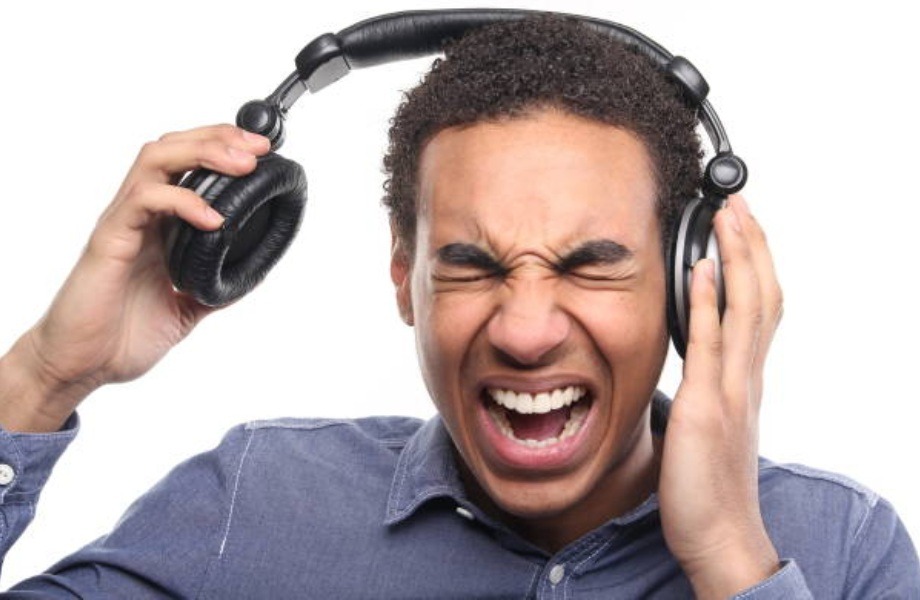
Imagine this; you’ve invested in a quality pair of headphones—you’ve just sat down to listen to your favourite song or podcast—when suddenly, you’re beset with an obnoxious crackling that seems almost aggressively disruptive.
Does this sound familiar? If so, you’re not alone. Indeed, for many of us, there are few things more distracting (and annoying) than hearing crackling or popping noises when all you want to do is relax with your favorite playlist or immerse yourself in a game. Instead of crisp, clear audio, those unwanted sounds break your focus and ruin the experience.
This can be as frustrating as it is concerning, especially if you’ve just dropped a fair amount of coin on what you assumed was going to be reliable technology. Naturally, the pressing questions start to creep in: “Are my headphones damaged? Did I waste my money? Is something wrong with my computer, or phone? Is this fixable, or will I need to fork out more money for a replacement?”
Well, the good news is that crackling audio doesn’t always mean your headphones are done for. The issue could stem from the hardware itself—such as loose connections, worn-out cables, or faulty drivers — or sometimes the issue can be software-related, e.g. system settings, audio drivers, or interference from other programs.
But Minidisc is here to help! Read on as we walk you through the most common hardware and software causes of crackling sound, and show you practical steps to troubleshoot and get your audio back to the smooth, distortion-free quality you expect.
Common Causes of Headphone Crackling
Headphone crackles can be caused by a myriad of different reasons; but the issue can very commonly whittle down to one of these usual suspects…
-
Dirty or Oxidized Connectors: When dust, lint, moisture or oxidized metal build up on connectors or inside the jack, the metal-to-metal connection gets impeded. That imperfect contact causes electrical resistance or dropouts, which show up as crackles or noise. Gentle cleaning—using a soft brush, compressed air, or contact cleaner—can help restore a clean connection.
-
Damaged Cables or Frayed Wires: Wires inside your headphone cable may become worn, frayed, or internally broken through bending, twisting, or general usage. Even if the outer insulation looks okay, internal breaks or breaks in shielding can let the signal degrade, especially where the cable is stressed. The result is crackling, pops, or even one ear going quieter. Replacing or repairing the cable often clears up the problem
-
Bluetooth Interference (for Wireless Models): Wireless headphones can suffer when other signals overlap — Wi-Fi, other Bluetooth devices, even physical obstacles or interference sources like microwaves. Interference leads to packet loss or unstable transmission, which your ears perceive as crackles or stuttering. Moving away from sources of interference, or ensuring the headphones and source device have a clear, unobstructed connection, can reduce or eliminate the noise.
-
Driver Issues (Computer or Device-Related): Here “driver” includes both the speaker or transducer inside the headphone (hardware driver) and the software/firmware/OS-level drivers that control audio output. If the internal speaker has been damaged, misaligned, or worn, sound reproduction suffers. On the software side, outdated or corrupted audio drivers, poor buffering, or mismatched sample rates/bit depths can lead to distortion and crackling. Updating firmware or driver software often helps.
-
Hardware Limitations (Cheap or Old Headphones): Lower-cost headphones often use less robust materials, simpler connectors, and less durable wires and shielding. Older headphones may have accumulated wear: degraded driver diaphragms, weak solder joints, or flexed cables. All of that increases the chances of crackling or audio artifacts. Also, inexpensive or aged hardware might not handle higher fidelity formats, higher volumes, or modern audio demands very well, making faults more audible.
How Do I Fix Headphone Crackling?
Hardware Solutions
-
Check & Clean Connections: A common culprit for crackling is dirt, lint, or oxidation in the headphone jack or on the plug. Cleaning the jack with something non-abrasive (like a toothpick wrapped with tape, or compressed air) can restore the metal-to-metal contact needed for clean audio. Ensuring the plug is straight and that it clicks firmly into place helps too—sometimes the plug is bent, or the jack has loosened over time, degrading the connection.
-
Inspect & Replace Cables: Wires suffer wear and tear especially at stress points: where the cable meets the jack, near volume controls, or inside hinge areas (for over-ear models). We suggest gently twisting or bending the cable while playing audio to locate where the crackling gets worse—this helps find internal breaks or frayed shielding. If damage is present, replacing the cable (or patching with high-quality wire and good insulation) is often the fix.
-
Replace Blown-Out Drivers: If one ear is quieter, or certain frequencies (bass, mids) revolt with distortion or crackle even when everything else is fine, the internal speaker driver may be damaged (“blown”). These can be caused by mismatched impedance or long periods of very loud listening. For blown drivers, replacement (when possible) is usually the only real solution, since repairing a damaged diaphragm or coil isn’t practical for most users.
-
Reset Your Bluetooth Connection: For wireless headphones, Bluetooth interference or pairing glitches can lead to dropouts and crackles. A fresh reset (disconnect, forget device, re-pair) can clear caches or glitches held over from previous connections. Also, walking closer to your source or reducing intervening physical barriers helps. Turning off or moving away from other devices that emit wireless noise (routers, microwaves, etc.) often improves the signal stability.
-
Test with Different Devices: To isolate whether the crackling is due to the headphones or the audio source, plug the headphones (or connect Bluetooth) to a different device. If the crackling remains, it's likely hardware in the headphones. If it clears up, the issue is probably with the original source (e.g. phone jack, audio output hardware, or device software).
Software Solutions
-
Update Audio Drivers: On computers especially, outdated or corrupted audio drivers can mishandle audio streams, leading to pops, crackles, or buffering issues. We recommend using Device Manager (Windows) to scan for driver updates, or downloading the latest drivers from the sound card or chipset manufacturer.
-
Adjust Audio Settings: Equalization (EQ) settings that heavily boost certain frequencies can strain drivers or reveal issues in weak hardware. Sometimes dialing back bass or high treble can stop crackling. Also, turning down volume slightly if you're near the maximum output can relieve stress on both hardware and the signal processing chain.
-
Disable Audio Enhancement / Exclusive Mode: Some systems allow apps to take “exclusive control” of audio output; if multiple applications are fighting for audio resources or switching formats, this can introduce artifacts. Disabling exclusive mode or turning off enhancements (surround sound effects, “bass boost” etc.) may lead to more consistent, cleaner output.
-
Change the Default Audio Format: In system sound settings (e.g., Windows’ Sound Control Panel), you can change the format (sample rate, bit depth). If the current settings are too demanding or not well supported by the headphones or DAC, using a more modest format sometimes eliminates crackling. For example, switching from 24-bit/192 kHz to 16-bit/44.1 kHz.
-
Tweak the Processor State / Power Settings: On laptops especially, power-saving or “balanced” profiles may throttle CPU or audio chip performance, creating buffer underruns (audio can’t be processed in time). We suggest setting minimum processor state to higher values in the power plan settings, so the system has more headroom to process audio smoothly.
When to Repair or Replace
Knowing when it’s time to repair versus replace comes down to cost, severity of damage, and expected improvement.
-
If the issue is something minor—dirty jack, frayed cable, small part damage—repairing is often inexpensive and effective. Replacing a cable, cleaning connectors, or even replacing earpads can revive otherwise decent headphones.
-
Conversely, if the damage is deep, e.g. blown drivers, internal wiring completely compromised, or connectors are irreparably bent — then repairs may be costly or technically difficult. At that point, the price of parts & labor might approach or exceed buying a new pair.
-
You should also factor in the age, brand, and quality of the headphones. High-end models tend to offer repair options and spare parts; cheaper/old models often don’t, so you may get better value in replacing rather than sinking money into repairs.
-
Finally, consider how much the performance matters to you: sometimes replacing cables fixes crackling, but you may still be limited by weak drivers or older electronics. If you want high fidelity or reliable performance, going to a newer, better-spec’d model can pay off in durability and cleaner audio.
Conclusion
Crackling headphones are more than just an annoyance; they can be early signs of loose jacks, dirty connectors, damaged cables, driver issues, or even hardware limitations. Ignoring these minor noises may lead to bigger problems and costly replacements down the line. Simple checks like cleaning connections, updating drivers, or testing with different devices can often resolve the issue.
At Minidisc, we understand the value of clear, uninterrupted sound. That’s precisely why we offer a wide range of products and services. Need assistance? Get in touch with our expert team today, and they can provide you with the guidance you need for troubleshooting old products, or upgrading to new products. Explore our full range today and experience audio the way it was meant to be heard.