
How to Improve the Sound Quality of Your Bluetooth Headphones
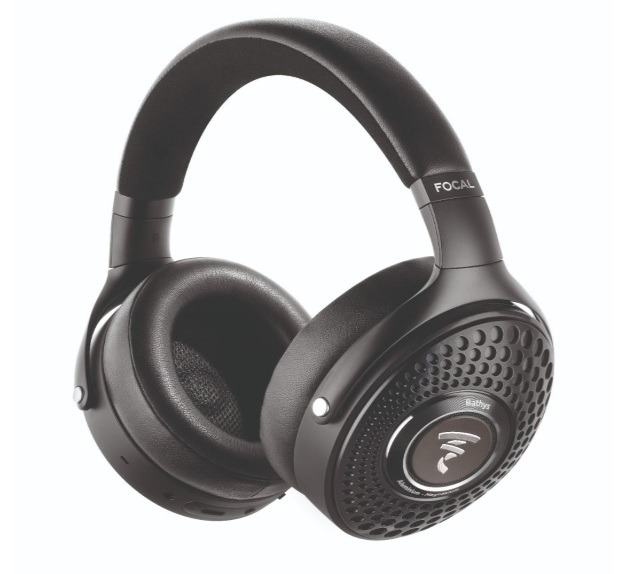
Most of us have been using bluetooth headphones ever since our Apple overlords decreed that our beloved headphone jacks were to be banished from the land. While Bluetooth audio comes with many obvious advantages, it can also come with its own set of quirks that can sometimes make your wireless headphones or earbuds sound less impressive than they should. Even with a quality pair of bluetooth headphones, users often cite issues such as thin sound, lack of clarity, or inconsistent volume.
The good news is that you don’t necessarily need to replace your headphones to get better audio; indeed, in most cases, the sound quality can be noticeably improved with some simple adjustments.
Certain factors can play a big role in the listening experience, such as Bluetooth codecs, device settings, the fit of your headphones, and the quality of your audio source. While Bluetooth can’t quite match the maximum fidelity of a wired connection, optimising certain factors can bring your headphones much closer to their true performance. With careful adjustments and attention to these details, you can dramatically improve clarity, depth, and overall enjoyment of your wireless audio, without spending a dime on new gear.
Why Your Bluetooth Headphones Might Sound Bad
Trying to troubleshoot your Bluetooth issues? Check to see if the problem is one of the following common issues…
-
Connectivity Issues: Bluetooth relies on wireless signals traveling through the air, which makes it vulnerable to physical obstacles and distance. Move too far from your phone or device, and the audio can skip or drop out. Even a simple wall or a door can weaken the signal. Being in a crowd doesn’t help either; our bodies contain around 60% water, which can absorb radio waves. When the connection falters, you might hear stuttering, robotic sounds, or intermittent dropouts.
-
Source Quality & Compression Problems: Your headphones can only reproduce the quality of the audio they receive, so if your music or podcast file is low-quality, that’s what you’ll hear. Streaming services often compress audio to save bandwidth, and Bluetooth adds another layer of compression when sending the signal wirelessly. The result can be a noticeable loss of detail, reduced clarity, and occasional static, particularly in higher frequencies.
-
Interference from Other Devices: Bluetooth isn’t the only wireless signal in town. Wi-Fi routers, microwaves, and even some smart home devices operate on the same frequency bands. This is like a traffic jam for radio signals: too many devices competing for space can force Bluetooth to lower its data rate to keep the audio playing without interruptions. You’ll still hear your music, but with less detail and clarity.
-
Headphone Hardware Limitations: Sometimes, the limitations come from the headphones themselves. Budget models often use small speakers that struggle with deep bass or lack premium materials, which affects overall sound quality. That said, many mid-range and even some high-end headphones are capable of much better performance; they just might not be set up optimally, meaning there’s untapped potential waiting to be unlocked.
Optimise Your Audio Source & Settings
Choose the Right Audio Source: Lossy Vs. Lossless
Lossless audio formats preserve every bit of the original recording, so nothing is thrown away during encoding, which means you’re hearing the full fidelity that the artist and engineers intended. In contrast, lossy formats reduce file size by removing audio data that is considered less perceptible, which makes streaming more efficient but sacrifices some detail and dynamic range. Major streaming services now offer a mix of lossy and lossless options, and understanding the difference can help you get the best sound from your setup:
Apple Music
Streams in true lossless using ALAC (Apple Lossless Audio Codec) across its entire catalogue. It also offers hi‑res lossless up to 24‑bit/192 kHz for tracks encoded at higher resolution, all included with the standard subscription at no extra cost.
Open the Apple Music app, go to Settings → Audio Quality → Media Quality, and switch on Lossless (if available for your account and device).
Tidal
Long recognised for high‑fidelity audio, Tidal supports FLAC lossless streaming up to 24‑bit/192 kHz on its HiFi/HiFi Plus tiers.
Open your Tidal app, head to Settings → Streaming, and select HiFi or Master (hi‑res) to access FLAC lossless and higher‑resolution streams.
Spotify
Spotify has begun rolling out lossless streaming (FLAC up to 24‑bit/44.1 kHz) to Premium users in many regions, with lossless enabled in media quality settings. However, this does not reach the hi‑res ceiling of Apple Music or Tidal, and true lossless isn’t attainable over Bluetooth due to bandwidth limits.
Open the Spotify app, go to Settings → Audio Quality → Media Quality, and switch on Lossless (if available for your account and device).
YouTube Music
Uses lossy AAC up to around 256 kbps even on Premium, with no lossless tier currently available.
Choose the Right Codecs
Understanding Bluetooth codecs is important, even if you’re not a hardcore audiophile. Each codec affects sound in key ways, including clarity, detail, latency, and energy efficiency, which can significantly impact your listening experience depending on how you use your headphones.
-
SBC: The default codec for most Bluetooth devices. It works everywhere, but is the least efficient in preserving detail and can introduce higher latency.
-
AAC: Common on Apple devices, it generally delivers better sound quality than SBC on iOS, with moderate latency, but performance may vary on Android.
-
aptX: A widely supported codec on Android and Windows devices, offering improved audio fidelity and lower latency compared with SBC.
-
aptX HD: An enhanced version of aptX that supports higher-resolution audio for more detail and a richer soundstage.
-
LDAC: Sony’s hi‑res codec, capable of transmitting at high bitrates for maximum detail. Sound quality can approach wired performance if both source and headphones support it, though battery usage can be higher.
Codec compatibility matters: your headphones and device must support the same codec to achieve the best audio quality and low latency. Mismatched codecs can reduce clarity and cause delays, which is especially noticeable in video or gaming.
Adjust Equaliser (EQ) Settings
Equalization (EQ) lets you adjust the balance of bass, mids, and treble in your music, tailoring sound to your taste or the headphones you’re using. Most smartphones offer built-in EQ presets, while many headphones also include companion apps with custom EQ controls for finer adjustments. You can boost low frequencies for punchy bass, lift mids for clearer vocals, or enhance highs for more sparkle. Presets are convenient for common genres, but custom EQ allows you to fine-tune the sound exactly how you like it. Simple tips: use a bass boost for hip-hop or EDM, emphasize mids for rock or acoustic, and lift highs slightly for pop or classical.
Keep Firmware and Software Updated
Keeping your device’s software and firmware up to date can significantly improve the performance of Bluetooth headphones. Manufacturers regularly release updates that fix bugs, enhance stability, boost Bluetooth performance, and expand compatibility with newer audio codecs and devices.
How to Update:
-
On smartphones and tablets, check for updates through the device’s settings menu under system or software updates.
-
On computers, visit the manufacturer’s website or device settings to update Bluetooth drivers and the operating system.
Regular updates help optimise connections, improve sound clarity, and reduce issues like latency, dropouts, or signal instability, ensuring your wireless headphones perform at their best.
Reduce Interference & Improve Connection Stability
To avoid crowded wireless environments and improve Bluetooth performance, keep your headphones within line-of-sight of your device and minimize distance, as walls, doors, and bodies can weaken the signal. Limiting the number of active Bluetooth connections on your device also helps maintain a stable link. If you experience dropouts or stuttering, turning Bluetooth off and on can reset the connection and clear interference. These simple steps can significantly reduce interruptions and improve overall audio clarity.
When Needed, Turn Off Features That Dampen Your Sound
Certain features prioritise speed or efficiency over sound quality. For example, “Game Mode” lowers latency but reduces audio bitrate, and Battery Saver can weaken your Bluetooth signal. Disabling these settings while listening to music helps ensure the clearest, most detailed audio.
Use a Bluetooth DAC or Better Source Device
A DAC (digital-to-analogue converter) turns the digital audio from your device into the sound your headphones play. While every phone or laptop has a built-in DAC, these are usually basic and limited. A dedicated external DAC handles conversion more accurately, reducing noise and revealing cleaner detail, tighter bass, and better instrument separation—subtle parts of music become clearer. Many higher-impedance headphones also need extra power, and DACs with built-in amplifiers provide the drive they require, preventing flat or quiet sound. Even casual listeners can benefit: pairing a quality DAC with good headphones is a simple upgrade that often delivers an immediate, noticeable improvement in audio performance.
When to Consider Upgrading Your Headphones
Some audio limitations come from the headphones themselves and cannot be fixed with EQ, settings, or software. Signs your headphones are the bottleneck include thin or muffled sound, weak bass, or lack of clarity, no matter the source or codec. To get better performance from Bluetooth headphones, look for high-quality drivers, broad codec support (like AAC, aptX, LDAC), and careful tuning for balanced sound. These hardware features determine how accurately your headphones reproduce detail, dynamics, and overall clarity.
Conclusion
To get the best sound from your Bluetooth headphones, ensure that your device and headphones are using the optimal codec and that both are fully updated. Keep the connection strong by staying within line-of-sight, minimising distance, and limiting other active Bluetooth devices. Use EQ settings or companion apps, and disable features like Game Mode or Battery Saver that reduce audio quality. For wired-capable models, consider a DAC/amp to unlock detail and drive demanding headphones.
And if all that fails, it might be time to upgrade. If that’s the case for you, you can explore the Mindisc range of headphones here. For all inquiries, you can get in touch with our trusty staff directly.